

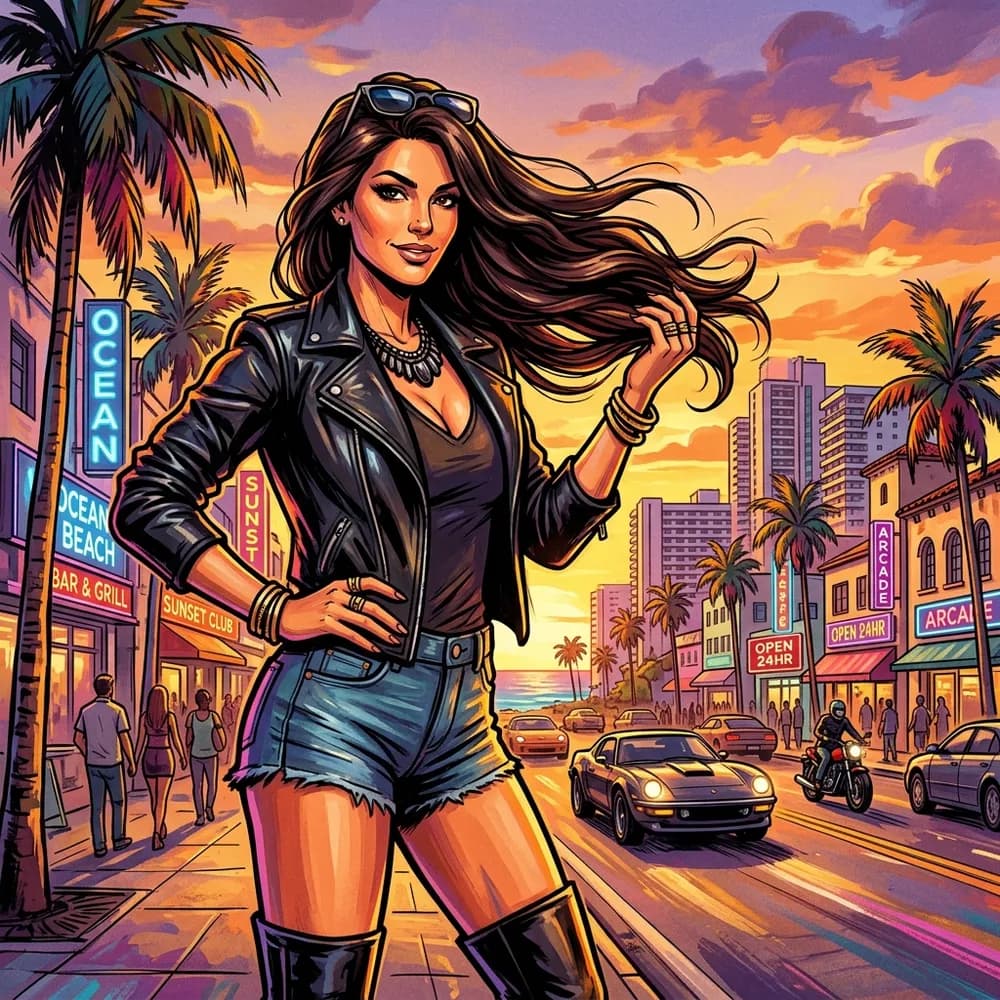
Remember the absolute eternity it took to load Grand Theft Auto V back in the day? While you sat there waiting for the game to load, you were treated to a slideshow of some of the most iconic, stylized artwork in video game history. Cell-shaded, high-contrast characters with thick vector ink outlines, staring coolly into the distance against sun-drenched, palm-lined backgrounds.
It’s an aesthetic that immediately screams "cool, slightly dangerous, and probably planning a heist."
The good news? You don't need a degree in digital illustration or hundreds of hours in Adobe Illustrator to get your own GTA-style portrait. And you definitely don't need to provoke a five-star police chase.
With our GTA Art Generator, you can instantly turn any selfie, portrait, or pet photo into a premium GTA loading screen masterpiece. Here’s how to do it.
🎨 The Anatomy of the GTA Loading Screen Style
What makes this look so instantly recognizable? It’s a very specific blend of comic book pop art and West Coast gangster-chic. Our Grand Auto AI Filter recreates these key elements:
- Bold Double Outlines: Thick black vector ink lines that define the subject and make them pop off the background.
- Cell Shading & High Contrast: Hard-edged shading rather than smooth gradients. The shadows are deep and bold, giving characters a graphic novel depth.
- Golden Hour & Neon Palettes: Saturated, warm tones—think sunsets over Santa Monica, neon pinks, deep purples, and high-visibility oranges.
- Streetwear & Accessorizing: The style thrives on details like aviator sunglasses, gold chains, structured jackets, and baseball caps.
🚀 How to Create Your GTA Loading Screen Art (Step-by-Step)
Ready to become a Los Santos legend? Let’s do it in four quick steps.
Step 1: Head to the GTA Studio
First, open up the GTA AI Art Generator.
(If heists aren't your vibe, you can browse our full AI Styles Library to find everything from the cozy Stardew Farmer style to the blocky Block Craft style).
Step 2: Upload Your Character Pose
For the best GTA look, pick a photo where you aren't just staring blankly at the lens. Try uploading a photo where you are:
- Looking slightly off-camera with a confident smirk.
- Wearing sunglasses, a hoodie, or a leather jacket.
- Holding something (like a phone, a steering wheel, or a cup of coffee).
These structural elements give the AI the perfect lines to draw those signature thick ink outlines.
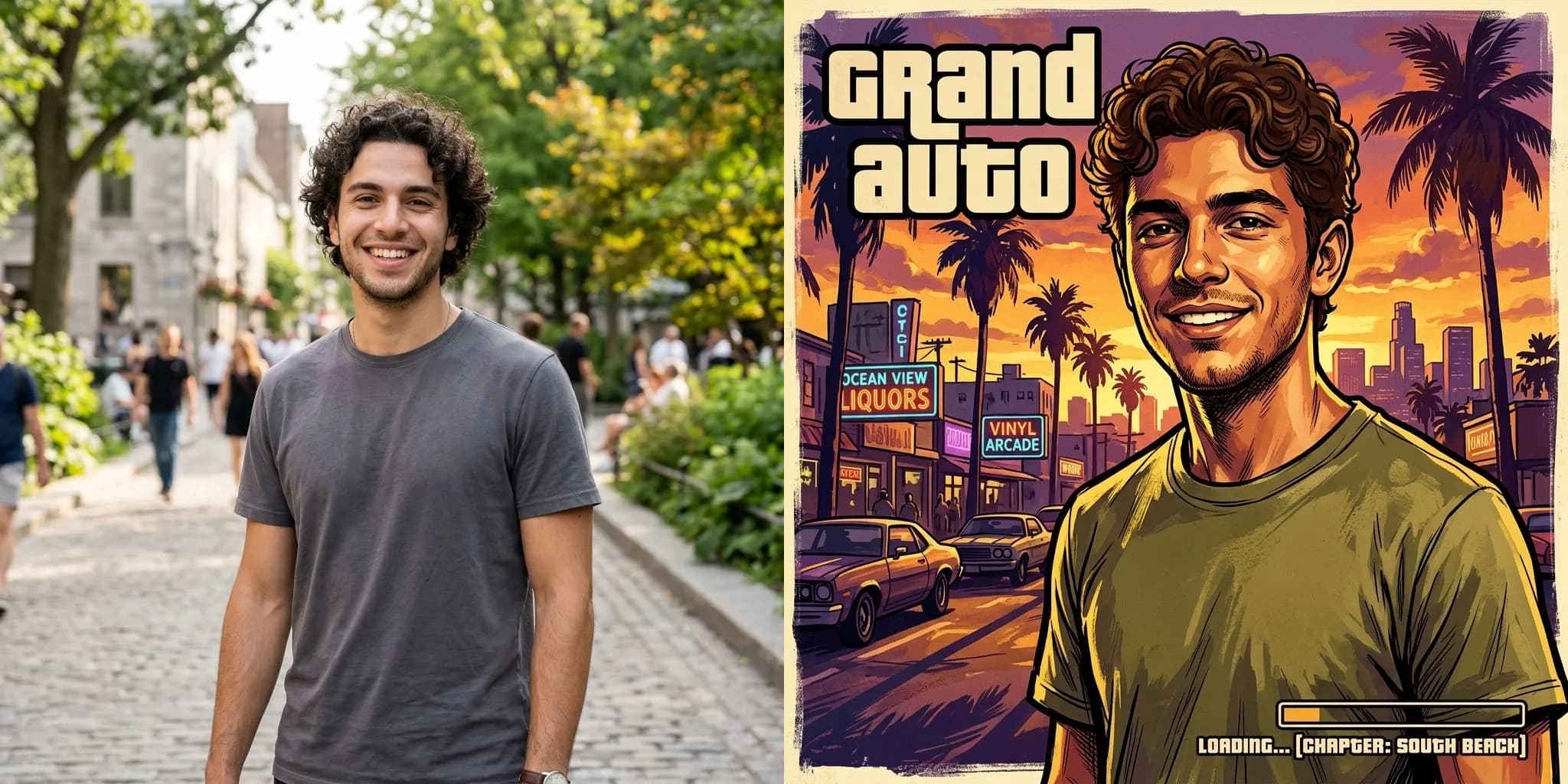
Step 3: Run the AI Engine
Click generate and let the AI build your vector cells. The neural network re-maps your facial structure, hair details, and clothes into GTA-styled inks. The render takes about 2 to 5 minutes.
Step 4: Download Your High-Res Avatar
Once it's done, download your high-resolution PNG. It’s ready to be used as your Discord avatar, gaming profile picture, or phone wallpaper.
🛠️ Prep and Polish Your Images Like a Pro
To get the absolute best results, you can use our suite of Free Online Image Tools to adjust your pictures first. They run 100% in your browser, meaning your photos never leave your device:
- Crop and Compress: Keep your file size down and dimensions perfect using the Image Resizer & Compressor.
- Preview Outline Details: Check how your photo's outlines look with the Pencil Sketch & Line Art Maker.
- Create Custom Memes: Add the classic red "WASTED" or green "MISSION PASSED" text overlay using our Custom Meme Generator.
- Clean Up Privacy Data: Before sharing your new avatar online, strip out camera metadata and GPS location tags with the EXIF Metadata Cleaner.
🎁 Put Your Los Santos Persona on Real Streetwear
Why leave your custom art trapped behind a screen?
Through the Artomize Store, you can print your generated custom GTA loading screen art onto premium physical merch. It makes an incredible, hilarious gift for friends, family, or your gaming crew.
Check out how we format graphics on some of our best-selling tees:
- Bold Statements: See how clean black-and-white print pops with the Not Today Satan Shirt.
- Streetwear Styling: Check out the classic typography on the Trust In The Lord Shirt.
- High-Contrast Graphics: See how detailed character outlines translate to fabric with the With God All Things Are Possible Shirt.
Ready to see what you look like as a video game protagonist? Head over to the GTA AI Generator and make yours now!


